Showing a shimmering status next to your bot's name in a Slack agent
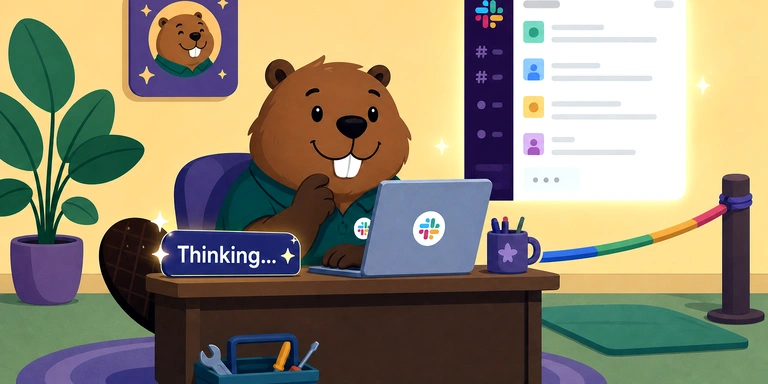
When you use Claude's Slack integration, or run Nous Research's Hermes Agent in Slack, the bot's name shimmers while it works on a reply, with a line like "is thinking..." next to it. This article covers how to produce the same indicator in your own agent bot.
It walks through configuring a Slack app as an "Agent" rather than a plain "App", then implementing the status display. Code examples assume Bolt for JavaScript.
Here is what it looks like in practice. The status line beside the bot name changes from "Thinking…" to "Looking things up…", then disappears once the reply arrives.
TL;DR
- The indicator is the status line produced by
assistant.threads.setStatus, animated by the Slack client. What you specify through the API is the text. - To display it, configure the app under Agents & AI Apps and grant either the
assistant:writeorchat:writescope. - In the newer UI (
agent_view), DMs arrive asmessage.imevents, so callclient.assistant.threads.setStatus()directly. - The status clears itself about 2 minutes after the last update, so re-send it periodically while work is in progress.
- Serialize the API calls so the clear is always the final write.
- Swapping the text based on the tool currently running turns it into a live progress indicator ("Running a command…").
1. How the status line works
When you set a status string via assistant.threads.setStatus, Slack renders a line reading <App Name> <status text> in the conversation. That line is animated, which is what makes the app name appear to shimmer. The API controls the text; the visual effect comes from the Slack client.
The Slack adapter of the open-source Hermes Agent (plugins/platforms/slack/adapter.py) documents the same API:
async def send_typing(self, chat_id: str, metadata=None) -> None:
    """Show a typing/status indicator using assistant.threads.setStatus.

    Displays "is thinking..." next to the bot name in a thread, ...
Separately, the message streaming APIs added in October 2025 (chat.startStream / chat.appendStream / chat.stopStream) deliver message body text incrementally; they are independent of the status line.
2. Configuring the app as an "Agent" instead of an "App"
To show the status line, the app has to be configured as an agent. Open your app at https://api.slack.com/apps and configure the following.
2-1. Enable Socket Mode (optional)
Socket Mode communicates over an outbound WebSocket to wss://wss-primary.slack.com. Since it needs no inbound port, it works as-is on a home LAN or a local machine.
- Settings → Socket Mode → Enable Socket Mode
- Create an App-Level Token (scope:
connections:write) and note thexapp-...value
Once enabled, events are delivered over the WebSocket instead of the Request URL (HTTP). If you can expose an HTTP endpoint, you can skip this.
2-2. Enable agent mode
This is the actual "App to Agent" switch.
- Features → Agents & AI Apps (previously called Assistant) → Enable
- App Home → enable the Messages Tab (Chat Tab)
- App Home → turn ON "Allow users to send Slash commands and messages from the messages tab"
The third setting is what lets users send you a DM from the Messages tab.
2-3. Bot Token Scopes
Grant these under OAuth & Permissions.
| Scope | Purpose |
|---|---|
assistant:write |
Agent mode (displaying the status line) |
chat:write |
Posting messages; also works for the status line |
app_mentions:read |
Receiving channel mentions |
im:history |
Receiving DMs |
channels:history / groups:history |
Continuing replies inside threads |
reactions:write |
Processing reactions (optional) |
As of the 2026-03-05 change, assistant.threads.setStatus accepts either assistant:write or chat:write, and Slack has announced it intends to consolidate on chat:write.
After adding scopes, reinstall the app to the workspace.
2-4. Event Subscriptions
Even with Socket Mode, you declare which events you subscribe to.
message.im— DMsapp_mention— channel mentionsmessage.channels/message.groups— continuing thread repliesassistant_thread_started/assistant_thread_context_changed— forassistant_view
2-5. assistant_view and agent_view
There are two agent UIs, and DMs arrive differently in each.
assistant_view |
agent_view |
|
|---|---|---|
| UI | Dedicated UI with separate Chat / History tabs | Everything in the normal Messages tab, like a regular DM |
| Status | The established form | Default for new apps since 2026-06-30 |
| How DMs arrive | Dedicated events such as assistant_thread_started |
Ordinary message.im events |
You can tell which one your app uses from features.assistant_view / features.agent_view in the App Manifest. A newly created app will be agent_view.
Bolt for JS's Assistant class is built around assistant_view-specific events such as assistant_thread_started, while agent_view DMs arrive at app.message() as message.im. To show the status in both UIs, call the API directly on client, as shown next.
3. Implementation — call setStatus directly on client
Calling it on client makes the status appear in agent_view DMs and in channel threads alike. Hermes Agent takes the same approach.
await client.assistant.threads.setStatus({
  channel_id: channelId,
  thread_ts: threadTs,
  status: "Thinking…",
});
To clear it, send an empty string.
await client.assistant.threads.setStatus({
  channel_id: channelId,
  thread_ts: threadTs,
  status: "",
});
3-1. Specifying thread_ts
thread_ts is a required parameter. In agent_view, a user's message arrives as a top-level message, so pass that message's own ts. Slack opens a thread rooted at it. Hermes Agent does the same (thread_ts = event.thread_ts or ts).
const threadTs = message.thread_ts ?? message.ts;
3-2. Re-send periodically to keep it visible
The status clears itself about 2 minutes after the last update. Agent work can run longer than that, so re-send the same text at a regular interval while work is in progress. An 8-second interval works out to 7.5 requests per minute per thread, comfortably within the default rate limit of 600 req/min per app per team.
3-3. Serialize the API calls
If setStatus calls go out in parallel, network response ordering can deliver a stale status after the clear. Serialize with a promise chain so the clear is always the final write.
let chain: Promise<void> = Promise.resolve();

const enqueuePost = (text: string): void => {
  chain = chain.then(async () => {
    await client.assistant.threads.setStatus({
      channel_id: channelId,
      thread_ts: threadTs,
      status: text,
    });
  });
};
3-4. Always send the clear
If setStatus fails because of a missing scope or a network error, it's fine to stop the periodic refresh — but still send the clear once. That guarantees the status line disappears when the work ends.
3-5. Rotate text with loading_messages
assistant.threads.setStatus takes an optional loading_messages parameter: pass up to 10 strings and it rotates through them.
await client.assistant.threads.setStatus({
  channel_id: channelId,
  thread_ts: threadTs,
  status: "Thinking…",
  loading_messages: ["Thinking…", "Looking things up…", "Organizing…", "Almost there…"],
});
It works well as the display up until the first tool starts running.
4. Change the text based on the running tool
Showing what the agent is doing right now changes how the wait feels, compared with leaving "Thinking…" up throughout. Hermes Agent does this too, with text like "is running pytest…".
Hook into your agent SDK to detect when a tool starts and reflect it in the status text. With the Claude Agent SDK, pick tool_use blocks out of the content of the assistant messages on the stream.
for await (const message of query(options)) {
  // Don't surface tool calls made inside a sub-agent
  if (message.type === "assistant" && !message.parent_tool_use_id) {
    for (const block of message.message.content) {
      if (block.type === "tool_use") {
        onToolUse(block.name);
      }
    }
  }
}
Messages carrying a parent_tool_use_id come from inside a sub-agent; excluding them keeps the display calm.
Then map tool names to text.
function statusTextForTool(toolName: string): string {
  if (toolName === "Bash") return "Running a command…";
  if (toolName === "Task") return "Asking a sub-agent to investigate…";
  if (["Read", "Glob", "Grep"].includes(toolName)) return "Looking through files…";
  if (["Write", "Edit"].includes(toolName)) return "Editing files…";
  if (["WebSearch", "WebFetch"].includes(toolName)) return "Searching the web…";
  if (toolName.startsWith("mcp__")) {
    const server = toolName.split("__")[1];
    return server ? `Using ${server}…` : "Using an external tool…";
  }
  return "Working…";
}
MCP tools are named mcp__<server>__<tool>, so extracting the server name gives you something readable.
5. Threads and sessions
Calling setStatus opens a thread rooted at that message in agent_view. Post the reply into the same thread so the status line and the answer line up.
await client.chat.postMessage({
  channel: message.channel,
  thread_ts: threadTs,
  text: reply,
});
Bolt's Assistant middleware also receives messages with channel_type=im and a thread_ts ahead of your message.im handler. Once DM replies are threaded, follow-up messages flow into the Assistant handler.
If you want a DM treated as one continuous conversation, don't split the session key by thread. Meanwhile, in assistant_view, threads a user starts deliberately are separate conversations and should stay keyed per thread. Deciding based on which session already exists gives the intended behaviour in both UIs.
const threadKey = sessionKeyOf(teamId, channel, threadTs);
const dmKey = dmSessionKeyOf(teamId, channel);
const sessionKey = hasSession(threadKey) || !hasSession(dmKey) ? threadKey : dmKey;
That hasSession() looks at runs currently in flight in addition to persisted session IDs. Session IDs are typically persisted after a run completes, so counting queued runs as "has a session" keeps the conversation continuous when an additional message arrives during the first run.
Summary
The API behind an agent bot's status display in Slack is assistant.threads.setStatus.
- Configure the Slack app under Agents & AI Apps with
assistant:writeorchat:write - Calling it directly on
clientcoversagent_viewDMs and channel threads alike - Pass the message's own ts as
thread_tswhen there is no thread - Re-send periodically while work is in progress, since it expires in about 2 minutes
- Serialize the API calls so the clear is the final write
- Swap the text based on the running tool for a live progress indicator
References
- assistant.threads.setStatus | Slack Developer Docs
- Developing an agent | Slack Developer Docs
- Introducing the Agent messaging experience (changelog)
- Scope update for assistant.threads.setStatus (changelog)
- NousResearch/hermes-agent —
send_typing()inplugins/platforms/slack/adapter.py
We look forward to discussing your development needs.